What's in the box
You should have received a small cardboard box in the mail from Allerta. Inside you'll find:
- inPulse Smartwatch
- microUSB cable
Guide
If you encounter any difficulty, feel free to email us on the right ->>.
Step 1 - Charge your inPulse
Plug your inPulse watch into a computer (using the supplied Micro USB cord) or use any other standard Micro USB charging cable. inPulse takes 45 minutes to charge fully, but you can get started with the rest of the setup while it's charging.
Your watch will display a 4 digit pairing code.
Step 2 - Install the inPulse Blackberry app
Ensure that your Blackberry phone is connected to the internet via data service or Wifi.
Open your BB Browser and navigate to http://www.getinpulse.com/beta
Click 'Download Blackberry Version ...'
After the app downloads, you may be prompted to reboot your Blackberry.
You will be prompted to select permissions for inPulse. It is essential to set default permissions to 'Allow' or else the app will not work.
Step 3 - Connect to your inPulse
Pair with inPulse using the Bluetooth Connection menu. On OS 5, select Manage Connections from the home screen. On OS6 or 7, go to Manage Connections from the 'top bar' or select Options, then search for Bluetooth.
Click 'Add New Device' then 'Search'.
From the list of available devices, select your inPulse. When it asks for the numeric passkey, enter the 4 digit code of your inPulse (ie if your watch shows up as inPulse2063, the pairing code is 2063).
After pairing initially, inPulse will disconnect.
Step 4 - Install the Default Notification App
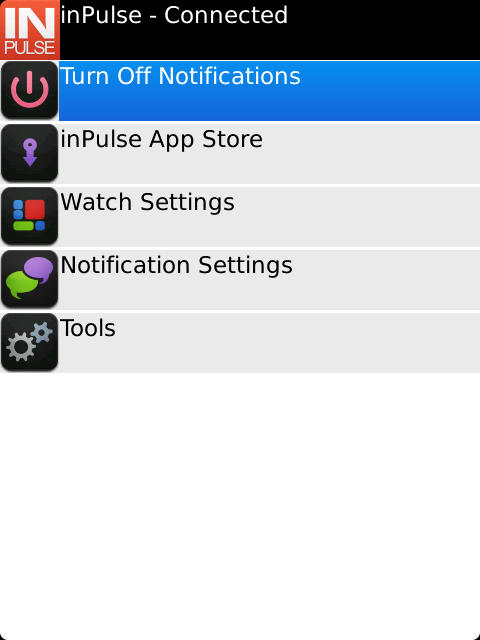
Since we release new firmware for the watch quite often, you need to update the firmware on your watch.
Open the inPulseBB app on your home screen.
inPulse will automatically reconnect to your Blackberry.
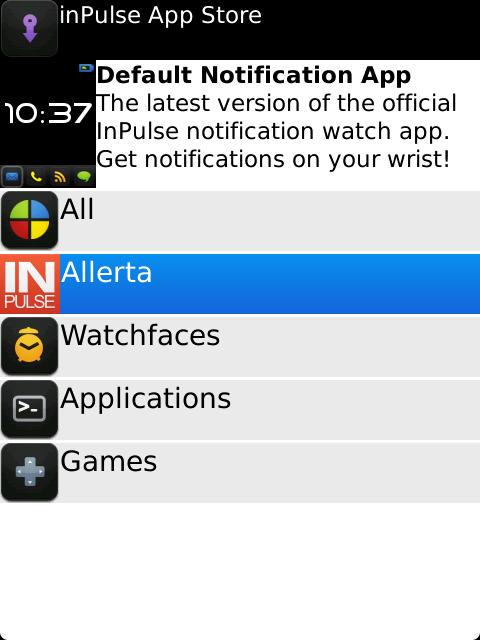
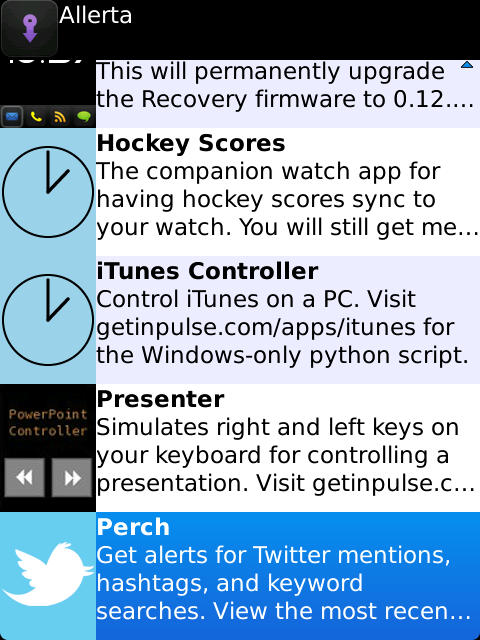
Click 'inPulse App Store', then choose 'Allerta', and look for the Perch app which should be at the bottom of the list.
Step 5 - Wait...
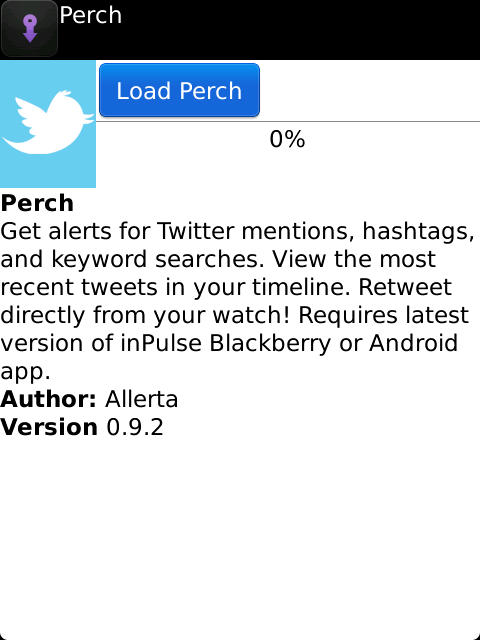 Wait for the transfer to finish. It usually takes 1-2 minutes for the firmware to transfer, and 10 seconds for the watch to reboot.
After the watch boots up into the notification app, return to the main screen inPulse app.
Step 6 - Configure Notifications
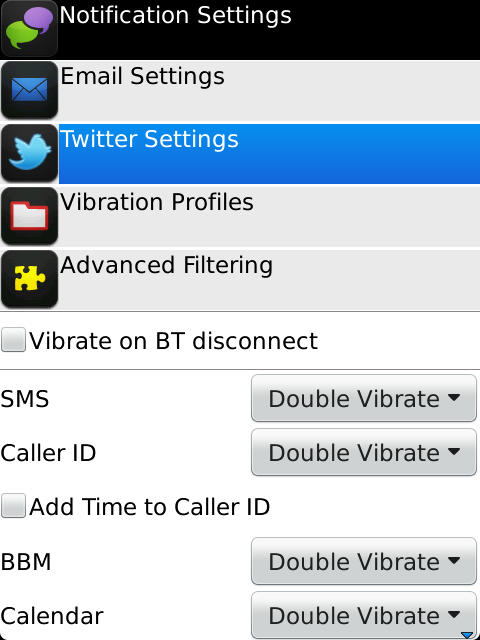
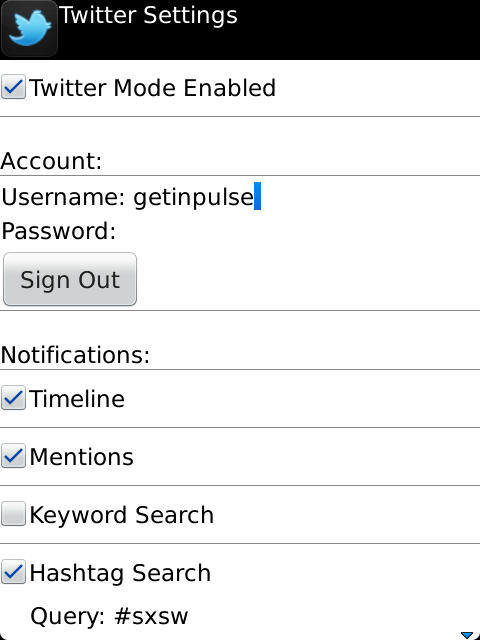 To set up your twitter account, click 'Notification Settings' from the main screen.
Select 'Twitter Settings'
Log into twitter and then choose which updates you would like to receive on your watch.
Something went wrong?
At any time, you can reset your watch by holding down the button until 'loading...' is displayed on screen. Then let go of the button, and the watch will reloading into factory firmware mode.From here, you can reinstall the default notification app using these instructions.