
Presenter
Description
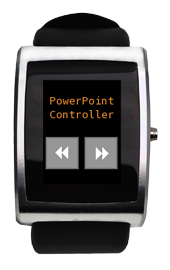
This app displays a next and a previous button. This app comes with a host-side python app that simulates left and right arrow key presses on the focused window. By clicking the button the slide will be advanced, while by click-holding will go to the previous slide
After loading the Presenter to your watch, you can start the Python host-side and control the presentation application, all from your watch.
If you have any questions or suggestions about this app, head over to our dev forum and drop us a line.

Watch Code
#include <pulse_os.h>
#include <pulse_types.h>
#include <app_resources.h>
#include <stdint.h>
#include <stddef.h>
// Forward Declaration
void handle_received_bluetooth_data(const uint8_t *buffer);
//Will draw the title of the app
void draw_title(PulseResource image)
{
pulse_draw_image(image,8,20);
}
//Draws the prev button
void draw_prev(PulseResource button)
{
pulse_draw_image(button,3,70);
}
//Draws the next button
void draw_next(PulseResource button)
{
pulse_draw_image(button,51,70);
}
// This function is called once after the watch has booted up
// and the OS has loaded
void main_app_init()
{
// Registers a callback function to handle non pulse-protocol bluetooth data received
pulse_register_callback(ACTION_HANDLE_NON_PULSE_PROTOCOL_BLUETOOTH_DATA, &handle_received_bluetooth_data);
draw_title(IMAGE_TITLE);
draw_prev(IMAGE_PREV_UP);
draw_next(IMAGE_NEXT_UP);
}
int hold_timer_value;
int button_timer_value;
bool held=false;
//If the button is held, then draw the IMAGE_PREV_DOWN for 500ms and then the IMAGE_PREV_UP after
void click_hold(int direction)
{
pulse_vibe_on();
pulse_mdelay(75);
pulse_vibe_off();
send_bluetooth_response(direction);
draw_prev(IMAGE_PREV_DOWN);
button_timer_value=pulse_register_timer(500, &draw_prev, IMAGE_PREV_UP);
held=true;
}
//when button_down event is called, the timer will be initialized for 500ms to check for button hold
void main_app_handle_button_down()
{
hold_timer_value=pulse_register_timer(500, &click_hold, 0);
}
void main_app_handle_button_up()
{
if(!held) {
//If the button is not held, then draw the IMAGE_NEXT_DOWN for 500ms and then the IMAGE_NEXT_UP after
draw_next(IMAGE_NEXT_DOWN);
button_timer_value=pulse_register_timer(500, &draw_next, IMAGE_NEXT_UP);
pulse_cancel_timer(&hold_timer_value);
send_bluetooth_response(1);
}
held=false;
}
// Main loop. This function is called frequently.
// No blocking calls are allowed in this function or else the watch will reset.
// The inPulse watchdog timer will kick in after 5 seconds if a blocking
// call is made.
void main_app_loop()
{
}
// This function is called whenever the processor is about to sleep (to conserve power)
// The sleep functionality is scheduled with pulse_update_power_down_timer(uint32_t)
void main_app_handle_doz()
{
}
// Prints a status message to the screen when bluetooth is connected or disconnected
void main_app_handle_hardware_update(enum PulseHardwareEvent event)
{
switch(event) {
case BLUETOOTH_CONNECTED:
//printf("BT Connected\n");
break;
case BLUETOOTH_DISCONNECTED:
// printf("BT Disconnected\n");
break;
}
}
// Send back a short response to the host that initiated the bluetooth connection
void send_bluetooth_response(int command)
{
pulse_send_bluetooth_int(command);
}
// Prints the first 16 bytes of the bluetooth data received to the screen
void handle_received_bluetooth_data(const uint8_t *buffer)
{
}
#include <pulse_types.h>
#include <app_resources.h>
#include <stdint.h>
#include <stddef.h>
// Forward Declaration
void handle_received_bluetooth_data(const uint8_t *buffer);
//Will draw the title of the app
void draw_title(PulseResource image)
{
pulse_draw_image(image,8,20);
}
//Draws the prev button
void draw_prev(PulseResource button)
{
pulse_draw_image(button,3,70);
}
//Draws the next button
void draw_next(PulseResource button)
{
pulse_draw_image(button,51,70);
}
// This function is called once after the watch has booted up
// and the OS has loaded
void main_app_init()
{
// Registers a callback function to handle non pulse-protocol bluetooth data received
pulse_register_callback(ACTION_HANDLE_NON_PULSE_PROTOCOL_BLUETOOTH_DATA, &handle_received_bluetooth_data);
draw_title(IMAGE_TITLE);
draw_prev(IMAGE_PREV_UP);
draw_next(IMAGE_NEXT_UP);
}
int hold_timer_value;
int button_timer_value;
bool held=false;
//If the button is held, then draw the IMAGE_PREV_DOWN for 500ms and then the IMAGE_PREV_UP after
void click_hold(int direction)
{
pulse_vibe_on();
pulse_mdelay(75);
pulse_vibe_off();
send_bluetooth_response(direction);
draw_prev(IMAGE_PREV_DOWN);
button_timer_value=pulse_register_timer(500, &draw_prev, IMAGE_PREV_UP);
held=true;
}
//when button_down event is called, the timer will be initialized for 500ms to check for button hold
void main_app_handle_button_down()
{
hold_timer_value=pulse_register_timer(500, &click_hold, 0);
}
void main_app_handle_button_up()
{
if(!held) {
//If the button is not held, then draw the IMAGE_NEXT_DOWN for 500ms and then the IMAGE_NEXT_UP after
draw_next(IMAGE_NEXT_DOWN);
button_timer_value=pulse_register_timer(500, &draw_next, IMAGE_NEXT_UP);
pulse_cancel_timer(&hold_timer_value);
send_bluetooth_response(1);
}
held=false;
}
// Main loop. This function is called frequently.
// No blocking calls are allowed in this function or else the watch will reset.
// The inPulse watchdog timer will kick in after 5 seconds if a blocking
// call is made.
void main_app_loop()
{
}
// This function is called whenever the processor is about to sleep (to conserve power)
// The sleep functionality is scheduled with pulse_update_power_down_timer(uint32_t)
void main_app_handle_doz()
{
}
// Prints a status message to the screen when bluetooth is connected or disconnected
void main_app_handle_hardware_update(enum PulseHardwareEvent event)
{
switch(event) {
case BLUETOOTH_CONNECTED:
//printf("BT Connected\n");
break;
case BLUETOOTH_DISCONNECTED:
// printf("BT Disconnected\n");
break;
}
}
// Send back a short response to the host that initiated the bluetooth connection
void send_bluetooth_response(int command)
{
pulse_send_bluetooth_int(command);
}
// Prints the first 16 bytes of the bluetooth data received to the screen
void handle_received_bluetooth_data(const uint8_t *buffer)
{
}
Python Script
import sys
import SendKeys #used to control Powerpoint by simulating a Left or Right keypress
import pulseprotocol as proto
from bt_comm import BT_Socket
#Establishing connection with the watch
btmac = sys.argv[1]
try:
socket = BT_Socket(btmac, 0x1001)
except:
print "Bad mac address or, if on Windows, the L2CAPServer might not be wokring"
sys.exit()
proto.determine_packet_format(socket)
socket.send(proto.cmd_set_bt_sniff_off())
socket.receive(4)
while(1):
#Receive the commain from the watch
text=socket.receive(256)
#If it's a valid command (Note: non-valid commands will have a length of 2)
if(len(text) is 4):
#transform it into an int
key=proto.int_from_buffer(text)
print key
#Simulate a left or right key press
if(key is 1):
SendKeys.SendKeys("""{RIGHT}""")
elif (key is 0):
SendKeys.SendKeys("""{LEFT}""")
#Closes conncetions
socket.close()
import SendKeys #used to control Powerpoint by simulating a Left or Right keypress
import pulseprotocol as proto
from bt_comm import BT_Socket
#Establishing connection with the watch
btmac = sys.argv[1]
try:
socket = BT_Socket(btmac, 0x1001)
except:
print "Bad mac address or, if on Windows, the L2CAPServer might not be wokring"
sys.exit()
proto.determine_packet_format(socket)
socket.send(proto.cmd_set_bt_sniff_off())
socket.receive(4)
while(1):
#Receive the commain from the watch
text=socket.receive(256)
#If it's a valid command (Note: non-valid commands will have a length of 2)
if(len(text) is 4):
#transform it into an int
key=proto.int_from_buffer(text)
print key
#Simulate a left or right key press
if(key is 1):
SendKeys.SendKeys("""{RIGHT}""")
elif (key is 0):
SendKeys.SendKeys("""{LEFT}""")
#Closes conncetions
socket.close()